Steps to create an Event for on Course / Simulator event
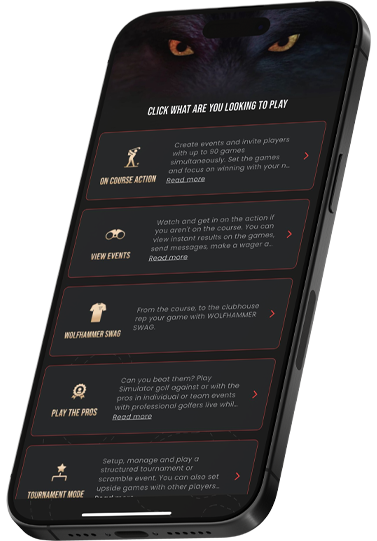
1. Home Screen choose on course action
2. Create an event button at the bottom of the page
3. Name the event date and time
4. Next choose the golf course the game will be played at and select the tees for the event
5. Then create the event then open the event by tapping on the event name in the event screen
6. Invite more players or invite your whole custom group – They will get an invite and must accept before you can add them to games. You can also click force accept at the bottom of the invitees list and this will auto accept their participation and allow you to build the event.
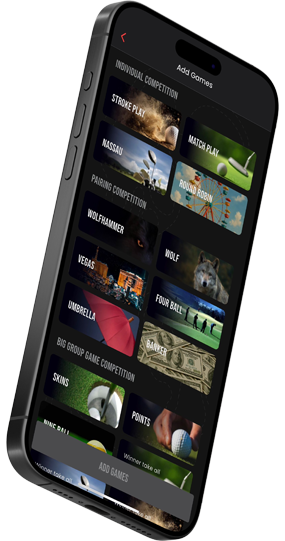
7. Add the game(s) you want to play – up to 90 sep games per event/round – click the games and then once all selected click add game(s)
*If you want to use the handicap feature and play ANY net game the USGA requires all players have a USGA handicap. You are allowed to adjust the USGA handicap in any event or individual game. You can sync your USGA handicap under your profile page by clicking on the profile icon
8. Under the games screen click the game
9. Click edit game on top right inside the game – this will open all the customization and betting options for you to build the game exactly as you or your group plays it.
If you have a large group and will be playing separate games by grouping you will need to add another game of the same type and adjust the participants in each game to match the groupings
10. Launch event
11. Once the event is launched it will take you to scorecard section. Click scoring and then choose score all and players if you are keeping scores everyone in event. If you have multiple groupings select setup scoring and select the players and games you will keep scores for. Each scorekeeper in each pairing will have to select what games and what players they are keeping score for.
Download Latest Version Of The App From
Access the most up-to-date features and enhancements by downloading the latest version.